Printing Charts
Printing from Browser
- Open the chart in the browser (works best in Chrome based browsers).
- Click on the print layout button somewhere at the top left and select the desired target paper format and orientation.
- Adjust zoom and position of the chart to your liking.
- Now print the chart (ctrl+p). In the print dialogue
- select the right paper size and orientation
- set margins to none or zero or minimal
- the chart should be centered on a single page
- Print!
zoom level and symbol size
With an active print layout you may zoom out half a zoom step to fit some more content of the map and make the text and symbols appear smaller without actually switching to another zoom level.
print to PDF
You may print to PDF instead of printing directly on paper. This way you can save chart for printing it again later. It also allows you to print the chart to an A3 PDF, which can be printed downscaled onto A4. This makes a higher resolution print, but with smaller text and symbols.
Printing PDFs is generally more reliable than printing directly from apps. Often there is better control of the printer and more options available. So, if printing directly from the browser fails, try to print to PDF and then print the PDF from your PDF viewer.
Paper and Ink
It is highly recommended to use a laser printer because toner is water-resistant. Ink from inkjet printers is generally not water-resistant and can run when exposed to water, which may render the print unusable. There is also waterproof paper made from treated cotton or synthetic materials that is suitable for laser printers; using this produces a water-resistant print.
Image export
With the arrow button in the print widget on the top left you can export the currently shown map as an image file. You can resize the browser window to the desired size before the export, or you can select a predefined print layout.
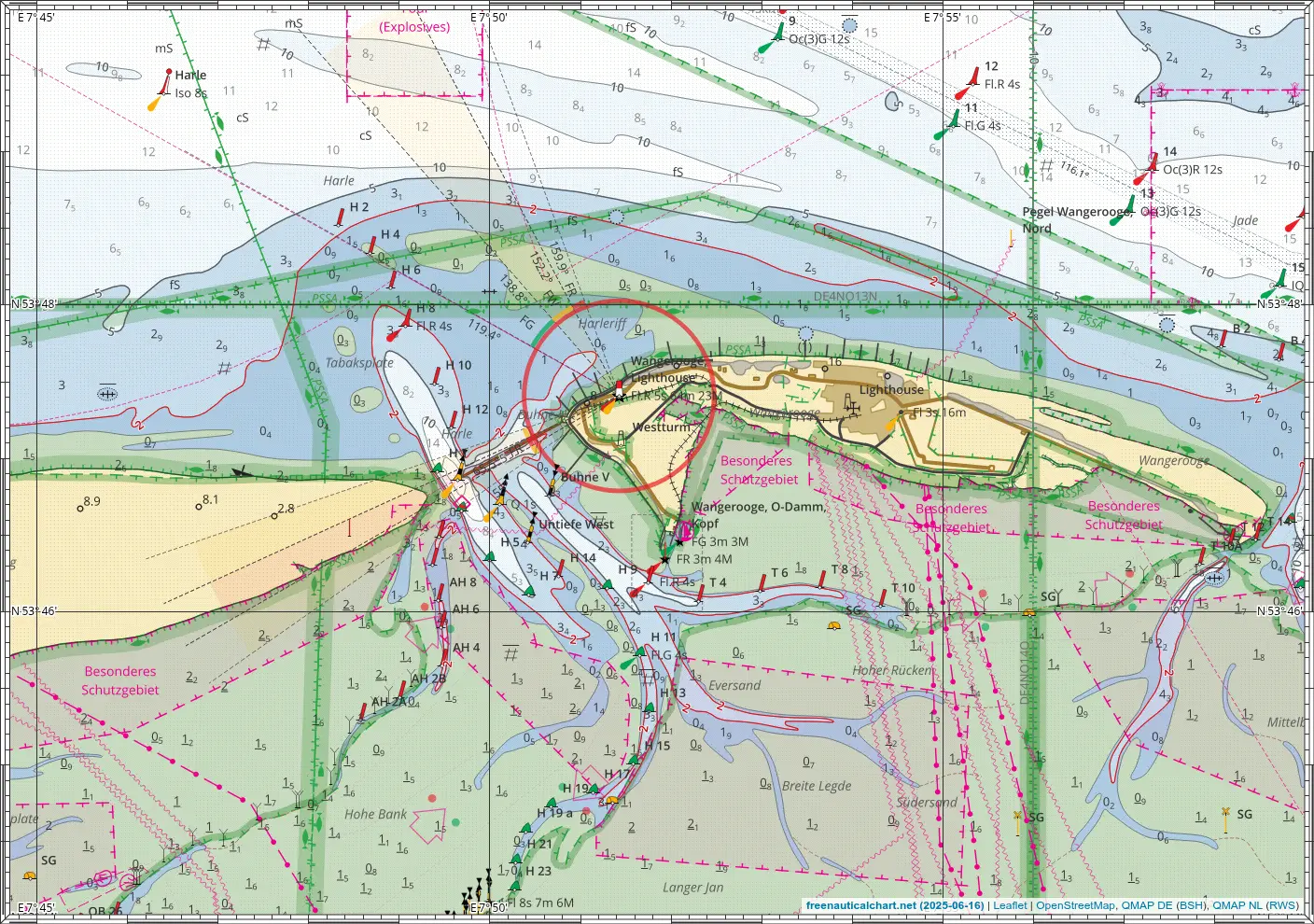
This is useful for creating screenshots of the map like above without the control elements but including the lat/lon borders.
Large formats
It is possible to print maps in sizes larger than A4. Since most users usually only have an A4 printer, the map can be printed across several A4 sheets and then glued together into a larger map. Proceed as follows.
- Create the map to be printed as a one-page PDF in the desired size. Pay attention to the resolution and the size of fonts and symbols for the target format. For best quality choose a sufficiently large format (the map may not be fully visible on screen; use Ctrl-Minus to zoom out, Ctrl-0 to reset to 100%) and print to PDF. Set the paper size and margins accordingly.
- Split this PDF across multiple A4 sheets. Some PDF viewers can do this natively, or you can use this script. With the
-toption you can specify the number of pages, e.g.-t 4x2distributes the map onto 4x2=8 sheets, which is approximately A1 (slightly smaller due to overlapping glue seams). - Print the pages, making sure to disable any automatic scaling in the printer settings.
- Trim the bottom and right margins of each sheet using the crop marks.
- Glue the sheets together to form the full map.
Example map
The following example shows the Elbe estuary as single A1 PDF and distributed across 2x4 A4 sheets, printed to PDF from the browser.
Tip
Prining with Firefox may result in very bad quality, try a chrome-based browser instead.