Usage
How to use the chart?
In the Browser
You can use the chart in you browser like any other map to view the chart and plan trips. Besides the map itself there are some additional features useful for navigation, which are going to be explained below.
App Mode
The chart can be installed as PWA. To do that, choose "install" or "add to home screen" from your browser's menu. It works best with chrome-based browsers. The app mode reveals different icons in the toolbar than the website mode, like GPS location of your device, nightmode with dark colours.
Additionally in the app mode the map tiles and tide forecasts you have viewed are stored in a cache to make them available for later offline usage.
Otherwise it works the same as the map in the browser, the app in fact is a browser, too, just in PWA mode.
Printing
You can easily print charts directly from your browser. How to do this in described here.
Tides
Tidal heights and currents can be displayed as described here. Very handy for passage planning to have this directly available in the chart.
Route Tool
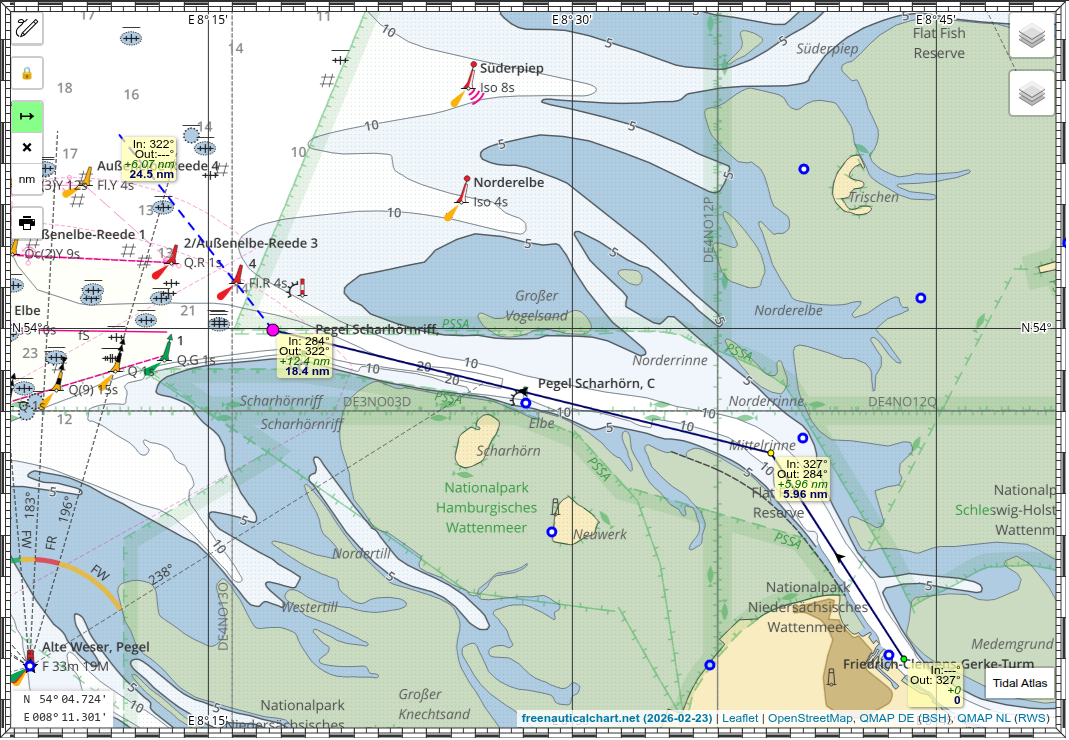
The route tool (green button in image above) allows you to place waypoints and and to read off course and distance between them.
Night Mode
For use at night there is a mode with dark colours. Toggle night mode with the moon icon. The brightness gets inverted but colours stay the same.
GPS tracking
You may also use the GPS of your device. Tap the boat icon and your GPS position will be shown on the map with a COG vector for the next 10 minutes. COG and SOG are displayed in the lower left corner.
Chart Tools
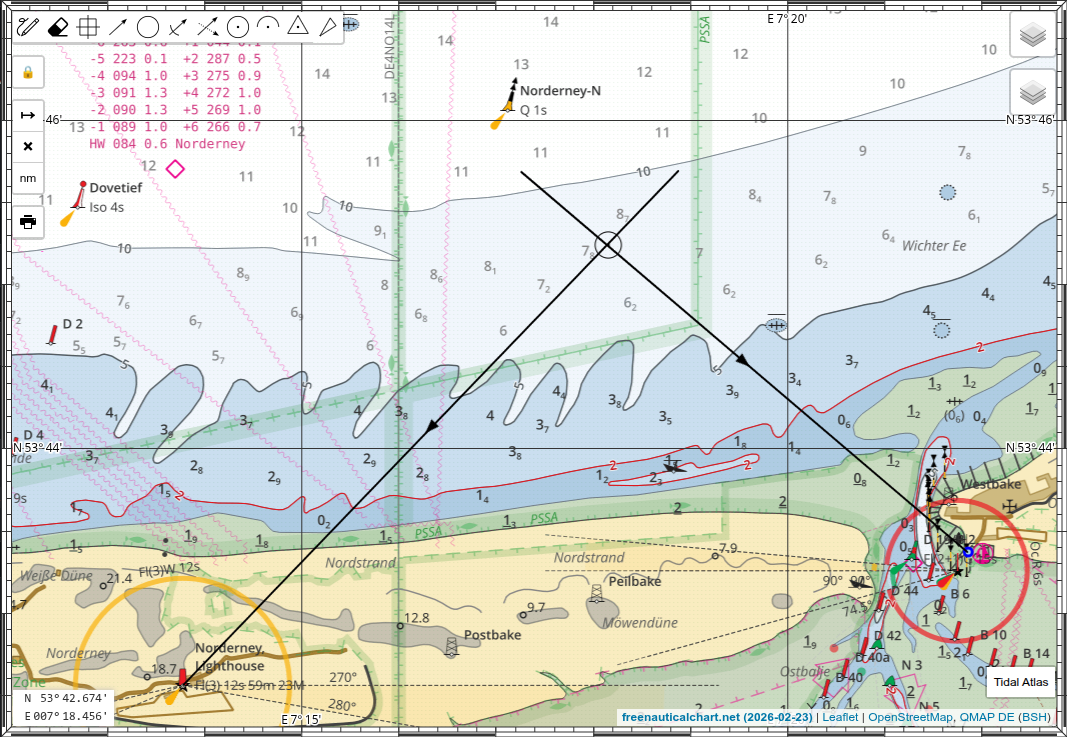
This is a unique feature of this chart. It combines modern electronics and a digital chart with classical navigation procedures as they were performed on a papaer chart. This allows you to do combine GPS and terrestrial navigation or to fallback to manual navigation in case of GPS failure or it being jammed. This kind of semi-automatic navigation may you also make more aware of what you are actually doing and where you really are. When sailing short or single handed the chart tools allow you to plot a fix from some bearings directly on the digital chart with a few taps. You don't have to write down the bearings, go down below, calculate and fiddle with triangle and pencil, possibly getting sick. You can then transfer the determined position to the paper chart. So, it may improve your diligence, good seamanship and safety. And lastly it is a great tool for educational purposes. You can use it teach yourself or to teach others and to prepare material and excercises.
The tools available are (left to right)
- Pen - open/close toolbar
- Eraser - wipe all drawing
- Waypoint - place a WP marker
- Bearing - draw bearing line, true and magnetic value is displayed
- Range - draw range circle
- Bearing & Range - draw bearing line and place range mark (radar fix)
- Running Bearing - draw beaing line, the parallel shift it along a course vector
- Fix - place a fix marker
- Dead Reckoning - draw DR line with direction and distance
- Estimated Position - draw current triangle, draw DR line, then current vector
- Cource to Steer - draw current triangle, draw current vector, then course over ground, then water speed
Electronic Compass
Many phones and tablets have built-in sensors for magnetic field and acceleration. These can be accessed through the browser's Sensors API if supported. The AbsoluteOrientationSensor allows the device to be used as a tilt-compensated magnetic compass. You get an accurate magnetic heading even if the device is not level. By adding the magnetic variation, the magnetic heading is automatically converted into a true heading.
This allows you to use your phone as a chart display and a hand-bearing compass in one unit. If the app detects a working orientation sensor, an additional bearing tool with a blue background is displayed. To use it, tap the icon and place a marker on the chart at the object to which you are taking a bearing. The bearing line will then be drawn automatically according to the device's orientation. Tap the screen anywhere to freeze the bearing.
Since you don't have to hold the device level, you can tilt it slightly left or right and align one of its long edges to point to the object. You don't need to look at the screen, just tap it once when the device is aligned and steady.
Compass Calibration
To get accurate readings it is vital to perform a compass calibration before taking bearings. This can usually be done from within the maps app by tapping the position marker, or you can use an app like GPS Status.
Changes over Time

Another feature is the comparison of charts from different times. In the top right you can select an older version of the chart alongside the current one. Older versions are identified by their date and by the missing flag icon. If you select the current chart and an older one, the older chart is displayed over the newer. Use the transparency slider to fade between the two maps and directly spot differences. Clicking the map while holding the Alt key toggles a periodic show/hide of the top layer at one-second intervals. This lets you pan around the chart while the layers blink, making changes between versions immediately apparent.